You just got a 12-page school calendar PDF.
Now what?
It's Sunday night. The school just emailed a new calendar for the semester. 47 dates. Early dismissals, teacher workdays, half-days, conferences, spirit weeks. Your spouse is asking "is there school next Friday?" and you genuinely don't know.
You could sit down and type each one into Google Calendar. That's about 45 minutes you don't have.
Or you could upload the PDF to Klarity and be done in 60 seconds.
Here's how it works
Open Quick Add
It's right in your dashboard sidebar. On your phone, tap the purple + button.
Drop in your file
Drag the PDF, paste a screenshot, or snap a photo of the flyer on the fridge. Klarity reads PDFs, images, iPhone photos (HEIC)—anything with dates on it.
Review and sync
Klarity shows you every event it found. Scan through, make any edits, hit Sync. Done. They're on your calendar—and your spouse's too.
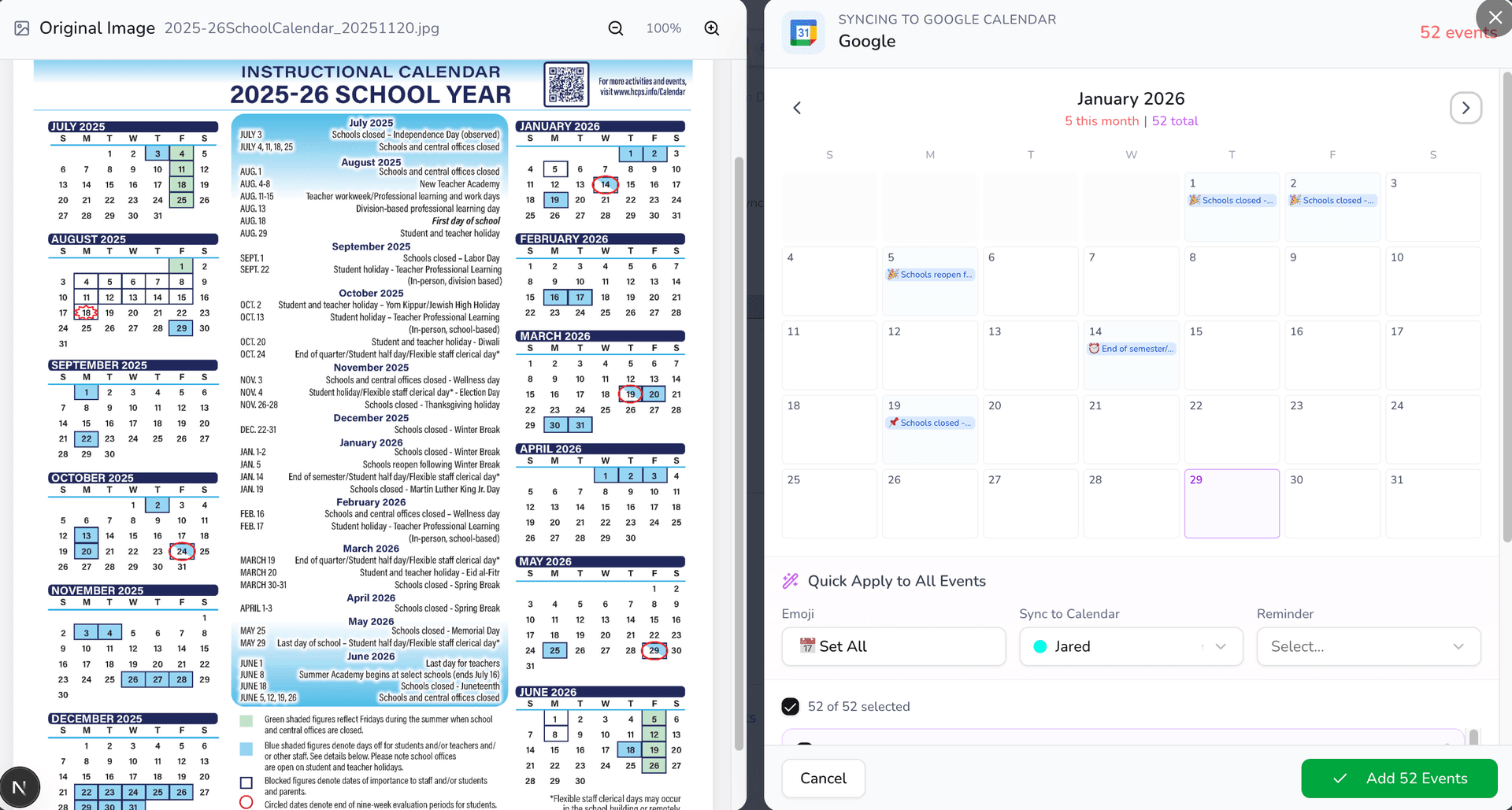
52 events extracted from a school calendar PDF. Review them all at once, then sync.
Not just files
Quick Add handles more than document uploads. Sometimes you just need to add a few events fast.
Type it out
Just say what you need in plain English.
Soccer practice Tue at 5pm
Dentist next Wed 2pm
Dance recital Dec 15 7pm
Snap a photo
On mobile, tap the camera icon. Point. Shoot. Events extracted.
Works great for flyers taped to the fridge, printed handouts, or whiteboards at the gym.
Route with #hashtags
Add #family or #school to send events to the right calendar.
Ask your calendar
Not sure if you're free? Just ask.
What happens after you upload
You don't just get raw events dumped onto your calendar. Klarity gives you control first.
Review every event
See your original document side-by-side with the extracted events. Edit titles, fix dates, or remove ones you don't need.
Apply settings in bulk
Pick a calendar, set reminders, add emojis, toggle smart buffer—all at once for every event.
Undo for 3 days
Synced to the wrong calendar? One click to undo the entire batch from your Sync History.
Everyone sees it
Events sync to Google Calendar, Apple Calendar, Outlook, or Notion. Your family sees them instantly—no extra app needed.
Works with everything you've got
Whatever format the school, coach, or camp sends it in—Klarity can read it.
Best accuracy
JPG / JPEG
Phone photos
PNG
Screenshots
HEIC
iPhone native
WebP
Web images
CSV
Spreadsheets
Max 10 MB per file. Free plan includes 2 uploads/month. Pro is unlimited.
Quick tips
Use the original PDF when you have it — embedded text gives the best results.
Cropping a screenshot to just the schedule area helps accuracy.
Good lighting matters for camera photos. Minimize glare.
Always scan the preview before syncing. AI is great, but a quick check catches edge cases.
Use #hashtags to route events to specific calendars without changing settings.
Desktop vs. mobile
| Desktop | Mobile | |
|---|---|---|
| Quick Add | Sidebar + floating circle | Purple + button |
| Upload | Drag-and-drop or browse | Browse or camera |
| Text | Multi-line textarea | Expanding input bar |
| Preview | Ghost events on calendar | Review page |
Common questions
What if it gets a date wrong?
You can edit any event before it syncs. Click it, fix it, done.
How many events can it handle?
No limit. School calendars with 50+ events work perfectly.
Does it work with iPhone photos?
Yes. HEIC files are fully supported, no conversion needed.
Which calendars does it sync to?
Google Calendar, Apple Calendar, Outlook, and Notion.
What if I sync to the wrong calendar?
Hit undo in your Sync History. You have 3 days.
How many uploads are free?
2 uploads per month on the free plan. Pro is unlimited at $5/month.
Stop typing events by hand
Upload your first schedule. 60 seconds. Free.